Shopify Product Images: Size, Format, and How to Add Them in Bulk
The size Shopify recommends, the hard limits, how to add images to one product or a whole catalog, and where to get photos when you sell products you did not make.
Shopify product image specs at a glance
If you only came for the numbers, here they are. Every figure comes from Shopify's own Help Center.
| Recommended size | 2048 x 2048 px, square |
| Maximum size | 5000 x 5000 px or 25 megapixels, file under 20 MB |
| Best formats | JPEG for photos, PNG for graphics or transparency |
| Also accepted | WebP, HEIC, GIF, TIFF, BMP, SVG (TIFF and BMP are converted on upload) |
| Media per product | Up to 250 (images, videos and 3D models combined) |
| Images per variant | 1 |
| Alt text | Up to 512 characters, 125 or fewer recommended |
| Compress before upload? | Not needed. Shopify's CDN optimizes images and serves WebP or AVIF automatically |
Sources: Shopify Help Center pages on product media types, adding media, variant images and alt text. Checked October 2026.
What size should Shopify product images be?
Use 2048 x 2048 pixels. Shopify says square images at that size usually display best, and it is large enough for zoom on most themes without making files heavy.
The size matters less than consistency. Your theme shows products side by side on collection pages. When one photo is square, the next is tall and the next is wide, the theme crops or resizes them differently and the grid looks uneven. Pick one aspect ratio for the whole store and stick to it. Square is the safest choice because almost every theme handles it well.
If your images are already mixed, most themes let you set the product card image ratio to square in the theme editor. That crops everything to the same shape, so check that nothing important, like a label, gets cut off.
Which file format should you use?
- JPEG for normal product photos. Small files and good quality.
- PNG when you need a transparent background, or for graphics with sharp text and lines.
- WebP and HEIC are accepted too, so you can upload straight from a modern phone.
You do not need to convert files to WebP yourself. Shopify stores your original and serves a smaller WebP or AVIF version to browsers that support it.
How to add images to a Shopify product
Adding images to variants
Each variant (for example a size or color) can have one image. On the product page, click the image placeholder next to a variant and pick an image from the product's media. To set several at once, select the variants with the checkboxes and choose Add images. If a color needs several photos, keep the extras in the main gallery.
How to add images to many products at once
Opening products one by one is fine for ten products. For hundreds, use one of these. Which one depends on whether you already have the image files.
| Your situation | Best method |
|---|---|
| Images already online with public links | Product CSV import with the Product image URL column (called Image Src in older guides) |
| A folder of image files named by SKU | A bulk upload app that matches files to products, or upload to Content > Files (200 per batch) and import the links by CSV |
| You have a developer | Shopify Admin API (productSet or productUpdate) |
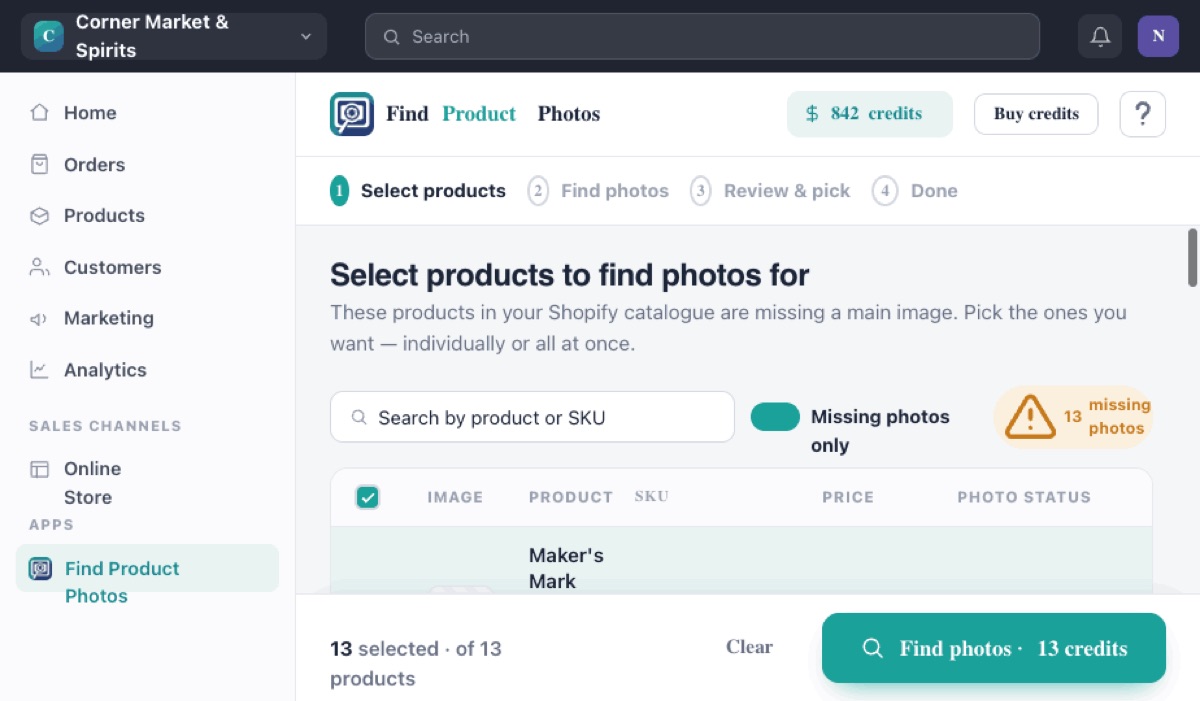
| Branded products, no photos yet | Find Product Photos finds the brand's photos and uploads them |
We wrote a full step-by-step for each method, including a CSV example and fixes for the common import errors: How to bulk upload images to Shopify.
Best practices that help sales and search
Keep the product big in the frame
Google Merchant Center, which powers Google Shopping and your Shopify Google channel, asks for the product to take up 75 to 90 percent of the image. Small products floating in a big white square look worse in a grid and get flagged in Shopping.
Use a white or plain background for the main image
Shopify's own photography guide calls the white background shot the workhorse of ecommerce. It keeps your catalog consistent and works in every Google placement. Save lifestyle shots for the second or third image.
Leave text, badges and watermarks off
If you sell through Google Shopping, Merchant Center rejects images with promotional text, prices, watermarks, store logos or borders. Put "Sale" and "Free shipping" in your theme, not in the photo.
Show what a shopper would check in a store
Where you can, add more than one angle: the front, the back or ingredients label, and something that shows scale. For packaged goods the back label answers questions before they reach your inbox.
Name files clearly, and avoid a few words Shopify reserves
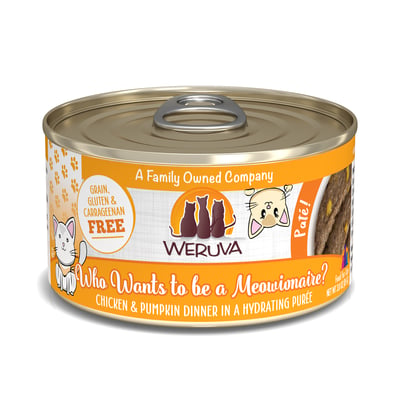
Google reads file names as a light hint, so weruva-meowionaire-cat-food-3oz.jpg is better than IMG_4821.jpg. One Shopify quirk: do not end a file name with small, medium, large, grande, compact, thumb, icon or pico. Shopify's CDN reads those words as resize instructions, and the image can display at the wrong size.
Write short, literal alt text
Alt text describes the image for screen readers and for Google. Brand, product, and the variant is enough: "Weruva Who Wants to Be a Meowionaire cat food, 3 oz can". Keep it under 125 characters and do not stuff keywords.
Where to get images for products you did not make
Almost every guide on this topic assumes you photograph your own products. Many Shopify stores do not. Liquor stores, pet shops, Asian grocers, beauty retailers and hardware stores sell products made by other brands, often thousands of them. For those stores the hard part is getting the photos in the first place.
The good news is that the photos already exist. The brand photographed every product for its own website and for its retailers. Your options for getting them:
- Ask your supplier or distributor. Some send a full image pack. Many send nothing, or low-resolution files.
- Check the brand's retailer portal. Larger brands run a media or asset portal for stockists. You may need to request access.
- Search Google one product at a time. It works, but at a few minutes per product a 1,000-product catalog takes weeks.
- Use a tool that does the search for you. Find Product Photos reads your product titles, finds the real photos the brand and its retailers have published, and uploads the ones you pick to Shopify, sized 2048 x 2048.
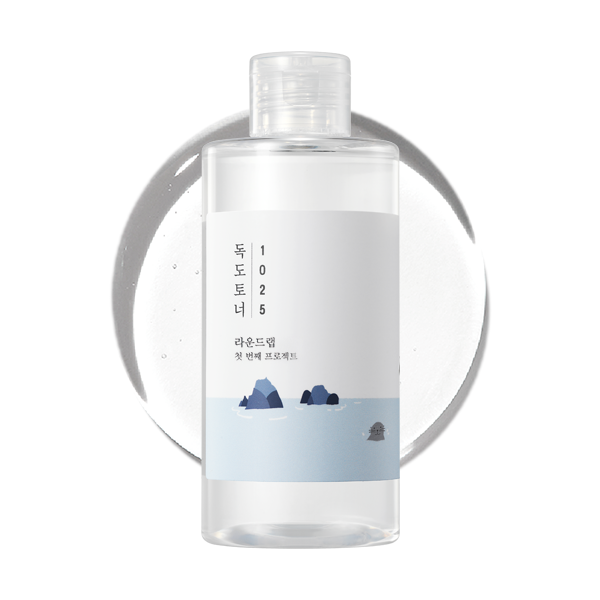
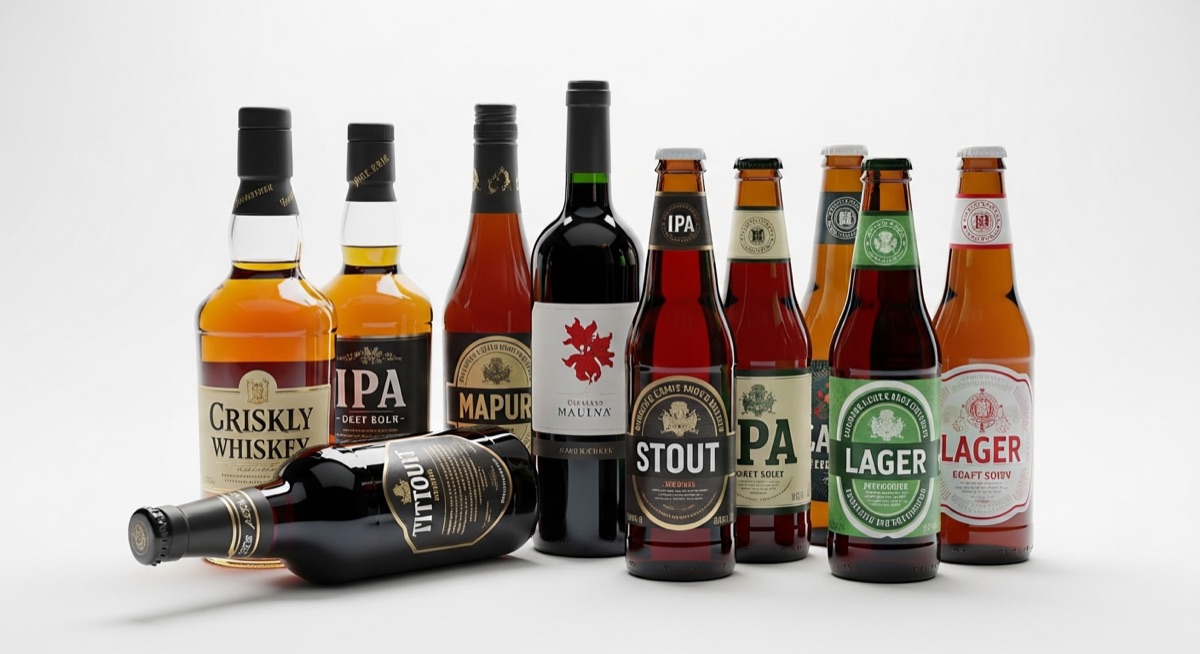
Here are a few real examples the app found from just the product title:
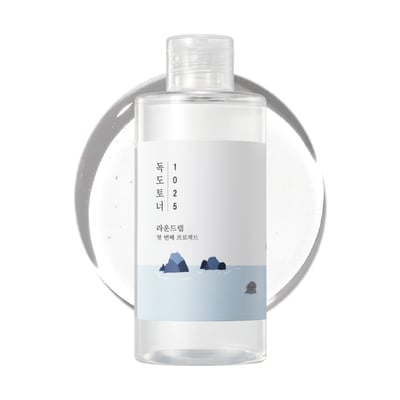
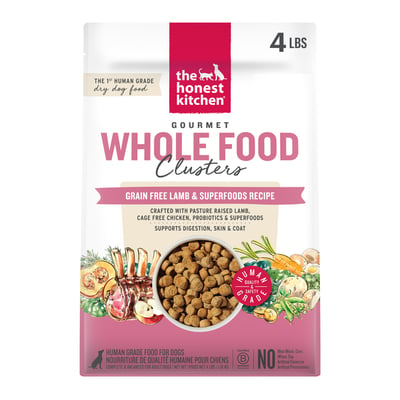
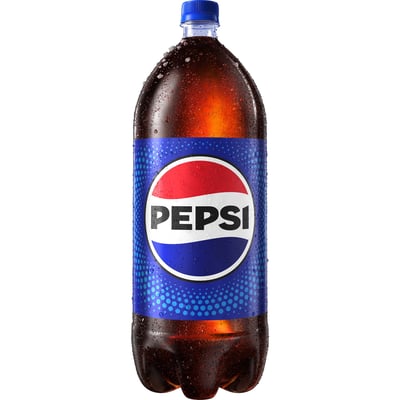
Whichever route you take, check your supplier agreement or the brand's terms. Brands publish these photos so retailers can sell their products, but some set rules on how they are used. This is general information, not legal advice.
Shopify product images: FAQ
What size should Shopify product images be?
Shopify recommends 2048 x 2048 pixels for square product images. Use the same aspect ratio for every product so your collection pages line up.
What is the maximum image size Shopify accepts?
Product images can be up to 5000 x 5000 pixels or 25 megapixels, and the file has to be under 20 MB.
How many images can a Shopify product have?
Up to 250 media items per product, counting images, videos and 3D models together. Most stores use 3 to 7 images per product.
Can a Shopify variant have more than one image?
No. Shopify lets you assign one image to each variant. Extra images for a variant go in the product's main gallery.
Do I need to compress images before uploading them to Shopify?
No. Shopify optimizes images on its CDN and serves WebP or AVIF to browsers that support them. Upload the largest clear original you have.
Why do my product images look different sizes on collection pages?
Your images have different aspect ratios. Make them all the same ratio (square is the safest), or set your theme's product card image ratio to square.
Can I add images to many Shopify products at once?
Yes. You can import image URLs with a product CSV, use an app that matches image files to SKUs, or, if you resell branded products and have no photos yet, use Find Product Photos to find and upload the brand's photos for you.
Where do I get product images for products I did not make?
Ask your supplier or distributor, check the brand's retailer or media portal, or use a tool that finds the photos the brand has already published online. Check your supplier agreement or the brand's terms for any limits on how you use them.
Sell branded products? Get the photos without the search.
Free to install. Your first 15 searches are free, and you only pay for the photos you upload.
Add Find Product Photos to Shopify